

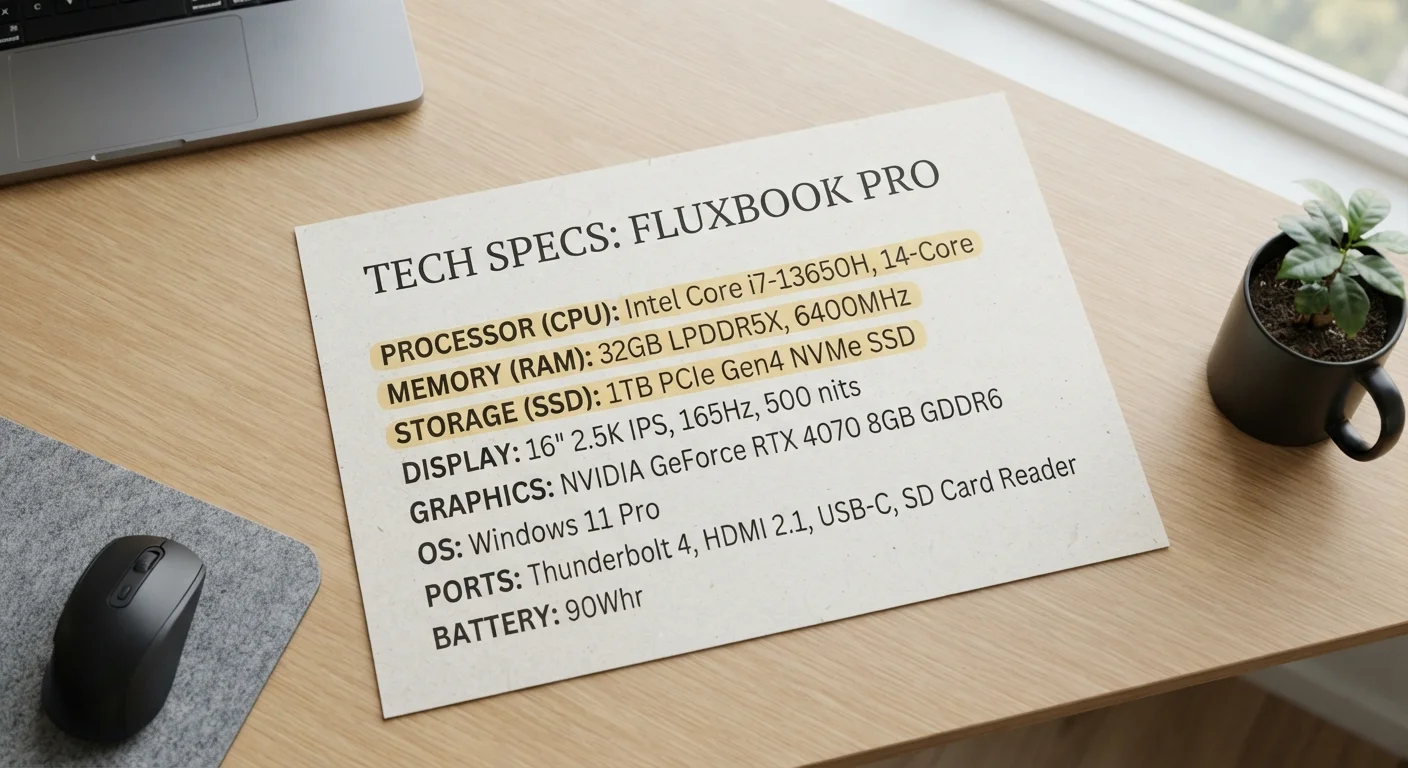
Key Takeaways
- The processor (CPU) is the brain — it runs every instruction your software sends.
- RAM is short-term memory; more of it means you can do more things at once without slowdown.
- Storage holds your files permanently and comes in faster (SSD) and slower (HDD) types.
- Higher numbers don't always mean better performance — balance across all three specs matters.
- Understanding these three specs covers the majority of what shapes everyday laptop experience.
Laptop Hardware Specs
Laptop specifications describe the core hardware components inside a device — primarily the processor, RAM, and storage. Each component handles a different job: the processor runs instructions, RAM holds active data temporarily, and storage saves everything long-term. Together, they determine what tasks a laptop can handle comfortably.
Specs are measured in standardized units (GHz for processor speed, GB for memory and storage, MB/s for storage transfer rates), but raw numbers don't always predict real-world performance on their own.
The Processor: Your Laptop's Decision-Maker
The processor — often called the CPU — is the component that executes every instruction your software sends. When you open an app, load a website, or type a document, the CPU is doing the work behind the scenes.
Two numbers appear most often in CPU descriptions: clock speed (measured in GHz) and core count. Clock speed reflects how many operations a single core can complete per second. Core count indicates how many independent processing units the chip contains, allowing it to handle multiple tasks simultaneously.
A higher GHz figure helps with tasks that run one process at a time, like launching an application. More cores help when several things happen in parallel — say, streaming music while running a video call and downloading a file. For most everyday users, a modern processor with four or more cores handles typical workloads without strain.
It's also worth knowing that processor generation matters as much as raw numbers. A newer chip at a lower clock speed can outperform an older chip at a higher one, because newer architectures process instructions more efficiently. See how processor generations work for a closer look at why generation numbers can be misleading.
Don't Judge a Processor by GHz Alone
Clock speed is one piece of the puzzle, but architecture and generation matter just as much. A chip from a newer processor family will often deliver better performance and efficiency than an older chip with a higher GHz number. When comparing options, check the generation alongside the speed figure.
RAM: Your Laptop's Active Workspace
RAM (Random Access Memory) is temporary storage that holds everything your laptop is actively working with. Unlike your saved files, RAM is cleared every time you shut down — it only stores what's needed right now.
Think of RAM as desk space. A larger desk lets you spread out more documents at once without constantly shuffling things in and out of a drawer. Similarly, more RAM means your laptop can keep more apps, browser tabs, and processes open simultaneously without slowing down.
When RAM fills up, your operating system starts using a portion of your storage drive as a temporary substitute — a process called virtual memory or paging. This is significantly slower and is often the cause of that frustrating lag when too many things are open at once.
~50%
Performance difference between SSD and HDD boot times
Industry benchmarks consistently show SSD-equipped laptops booting in under 15 seconds compared to 30–45 seconds or more for HDD systems under similar conditions.
16GB
RAM increasingly cited as a comfortable multitasking baseline
As operating systems and browser applications consume more memory over time, many technology educators and reviewers suggest 16GB as a practical target for laptops purchased with longevity in mind.
For general laptop use in the current software landscape, 8GB is a common starting point, while 16GB provides meaningful headroom for multitasking. The relationship between RAM and speed is more nuanced than it first appears — why more RAM doesn't always mean a faster computer explores that in detail.
Storage: Where Everything Lives Permanently
Storage is where your operating system, applications, photos, documents, and downloaded files reside permanently. Unlike RAM, storage retains everything even when the laptop is powered off.
The two main storage types you'll encounter are HDD (Hard Disk Drive) and SSD (Solid State Drive). HDDs store data on spinning magnetic disks, making them slower and more susceptible to physical damage. SSDs use flash memory with no moving parts, resulting in dramatically faster read and write speeds, quieter operation, and greater durability.
The practical difference is noticeable: a laptop with an SSD typically boots in seconds and opens applications quickly, while an HDD-equipped machine of the same spec sheet may feel sluggish by comparison. Storage capacity is measured in gigabytes (GB) or terabytes (TB), and how much you need depends on what you plan to keep on the device locally versus in cloud services.
If you're also evaluating phones or tablets, the same concepts apply — what storage really means on a phone breaks down how to think about capacity for mobile devices.
How These Three Specs Work Together
Processor, RAM, and storage don't operate in isolation — they interact constantly. A fast processor paired with too little RAM will still struggle when you have many tabs open. Ample RAM with a slow HDD creates a bottleneck the moment files need to load. Balance across all three specs is what produces a consistently smooth experience.
A useful mental model: the processor is the chef, RAM is the kitchen countertop (working space), and storage is the pantry (long-term supply). A skilled chef with a tiny counter and a disorganized pantry will still work slowly.
When evaluating a laptop, rather than fixating on one impressive number, look at how the specs work as a system. The full laptop spec sheet decoded guide covers additional terms you'll encounter in product listings. And if you want to go further in separating meaningful specs from marketing noise, eight specs that sound important but rarely are is a practical companion read.
For a broader framework on comparing any product — not just laptops — comparing products thoughtfully offers useful evaluation principles that apply across categories.
Specs Vary by Use Case
The "right" amount of RAM, storage, or processing power depends entirely on what you plan to do. Basic web browsing and document work have very different requirements than video editing or running data-heavy software. Define your use case before treating any spec number as a universal threshold.