

Key Takeaways
- SSDs have no moving parts, making them faster, quieter, and more resistant to physical shock than HDDs.
- HDDs typically offer more storage capacity for the same price, making them cost-effective for bulk storage.
- Boot times and application loading are noticeably faster on SSD-equipped computers than HDD-equipped ones.
- Most modern laptops come with SSDs; HDDs remain common in desktop towers and external backup drives.
- The right choice depends on whether you prioritize speed and portability or raw capacity and lower cost.
Option A
SSD (Solid-State Drive)
The fast, silent, modern storage standard.
Best for: Users who want quick boot times, responsive performance, and a durable drive for everyday computing.
Option B
HDD (Hard Disk Drive)
The high-capacity, budget-friendly legacy option.
Best for: Users who need to store large volumes of data — videos, archives, backups — at the lowest cost per gigabyte.
If you want a faster, more responsive everyday computer
SSD (Solid-State Drive)
SSDs dramatically reduce boot and load times. The difference is immediately noticeable in day-to-day use, from startup to launching apps.
If you need to store large files like video archives or photo libraries cheaply
HDD (Hard Disk Drive)
HDDs deliver far more gigabytes per dollar, making them practical for bulk storage where access speed is less critical.
If you're buying a laptop for travel or daily commuting
SSD (Solid-State Drive)
Without spinning platters, SSDs handle movement and the occasional knock far better, reducing the risk of data loss on the go.
If you're setting up a desktop PC with a tight budget
HDD (Hard Disk Drive)
A large-capacity HDD keeps costs down while still covering most general storage needs in a stationary setup.
How Each Drive Type Actually Works
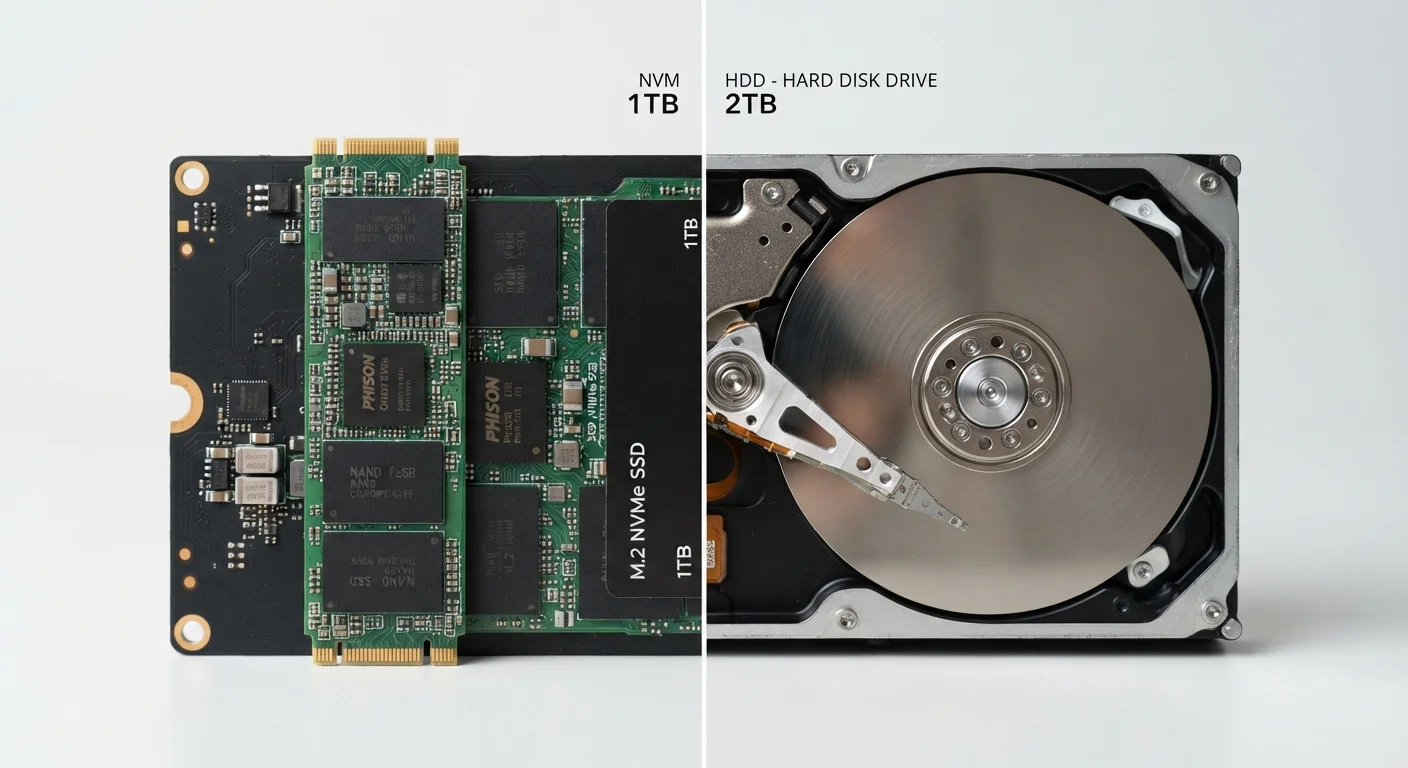
The biggest difference between an SSD and an HDD isn't brand or size — it's the underlying technology. An HDD (Hard Disk Drive) stores data on spinning magnetic platters. A read/write head physically moves across those platters to find and write information, similar in principle to an old record player. That mechanical process takes time and creates noise.
An SSD (Solid-State Drive), by contrast, stores data on interconnected flash memory chips — the same general technology used in USB drives and phone storage. With no moving parts, it retrieves data electronically rather than mechanically. The result is a drive that's faster, silent, and far less vulnerable to physical damage.
For a broader look at how storage fits alongside RAM and processing power, see our explainer on what each spec actually does.
| Criterion | SSD | HDD |
|---|---|---|
| Moving parts | None (flash memory) | Yes (spinning platters) |
| Typical boot speed | 10–20 seconds | 30–60+ seconds |
| Shock resistance | High | Low |
| Noise | Silent | Audible (clicks, whirrs) |
| Cost per gigabyte | Higher | Lower |
| Common use case | Laptops, primary drives | Desktops, backup drives |
| Power consumption | Lower (better battery life) | Higher |
Speed, Durability, and Capacity: The Real Trade-Offs
Speed: SSDs load an operating system in seconds. HDDs can take significantly longer, particularly on older machines. Application launch times, file transfers, and overall system responsiveness all feel noticeably snappier with an SSD — something first-time buyers often underestimate before they experience it.
Durability: Because HDDs have moving parts, a bump or drop while the drive is active can cause physical damage and data loss. SSDs handle shock and movement much better, which is why they've become the standard in modern laptops designed to travel.
Capacity and cost: HDDs still hold a significant advantage in storage-per-dollar. A 2TB HDD often costs considerably less than a 2TB SSD. For users archiving home videos, raw photo files, or large software libraries, that gap matters.
~5×
Speed advantage of SSD over HDD
Sequential read speeds on consumer SSDs are generally around five times faster than comparable HDDs, according to widely published hardware benchmarks.
~50%
Lower cost per GB for HDDs vs. SSDs
HDDs consistently offer more storage per dollar; the cost gap has narrowed over time but remains significant for large-capacity drives.
If you're deciding between a laptop and a desktop — where storage type often differs — our laptop vs. desktop comparison covers how each form factor uses these drives differently.
Which Storage Type Should You Choose?
For most people buying a new laptop today, an SSD is the straightforward choice. Boot times, application responsiveness, and overall reliability have made SSDs the default in consumer laptops — and for good reason. If you're shopping for a first laptop, our first-time laptop buying guide walks through how to weigh storage alongside other specs.
HDDs remain genuinely useful in specific contexts. External HDDs are a practical, affordable option for backing up large amounts of data. Desktop towers — which have more physical room — often include an HDD alongside an SSD: the SSD runs the operating system and key applications quickly, while the HDD handles bulk file storage cheaply.
If you're worried about running out of space on an SSD, good storage habits can go a long way. Our tips on keeping your laptop running well includes practical advice on managing storage without constantly buying more.
A Note on Phone and Tablet Storage
Phones and tablets don't use SSDs or HDDs — they use a specialized form of flash storage built directly into the device. If you're trying to understand storage on a mobile device, the concepts are related but not identical. Our guide to phone storage explains what those numbers actually mean for your usage.