

Key Takeaways
- Tower desktops offer the most upgrade flexibility and raw performance headroom for demanding tasks.
- All-in-ones save desk space and reduce cable clutter, but are difficult or impossible to upgrade later.
- Mini PCs are highly portable and energy-efficient, suited to light everyday computing tasks.
- Processor type and RAM matter more than brand name when assessing real-world performance.
- Form factor should be chosen based on your workspace, tasks, and long-term needs — not aesthetics alone.
Our Verdict
Each desktop form factor addresses a different set of priorities. Towers reward users who want longevity and expandability; all-in-ones prioritize a tidy workspace; and mini PCs suit people who need a capable but low-footprint computer. No single option is universally superior — the right choice depends on how you work, where you work, and what you expect from your machine over time.
| Best for | Recommended |
|---|---|
| Users who want long-term upgradability and high performance | Tower Desktop |
| Those prioritizing a clutter-free workspace or shared living area | All-in-One |
| Light users needing a compact, energy-efficient machine | Mini PC |
| First-time buyers unsure about long-term needs | Tower Desktop |
Why Desktop Form Factor Matters Before Anything Else
Before you compare processor speeds or memory amounts, the physical form factor of a desktop shapes nearly everything else: what components fit inside, whether you can upgrade later, how much space you need, and how the machine integrates into your environment. If you're deciding between a desktop and a laptop first, see our comparison of laptops and desktops for context on portability trade-offs.
The three main desktop categories — towers, all-in-ones (AIO), and mini PCs — each approach computing from a fundamentally different angle. Understanding what each one is built around makes the rest of your decision considerably easier.
Tower Desktops: Maximum Flexibility, Larger Footprint
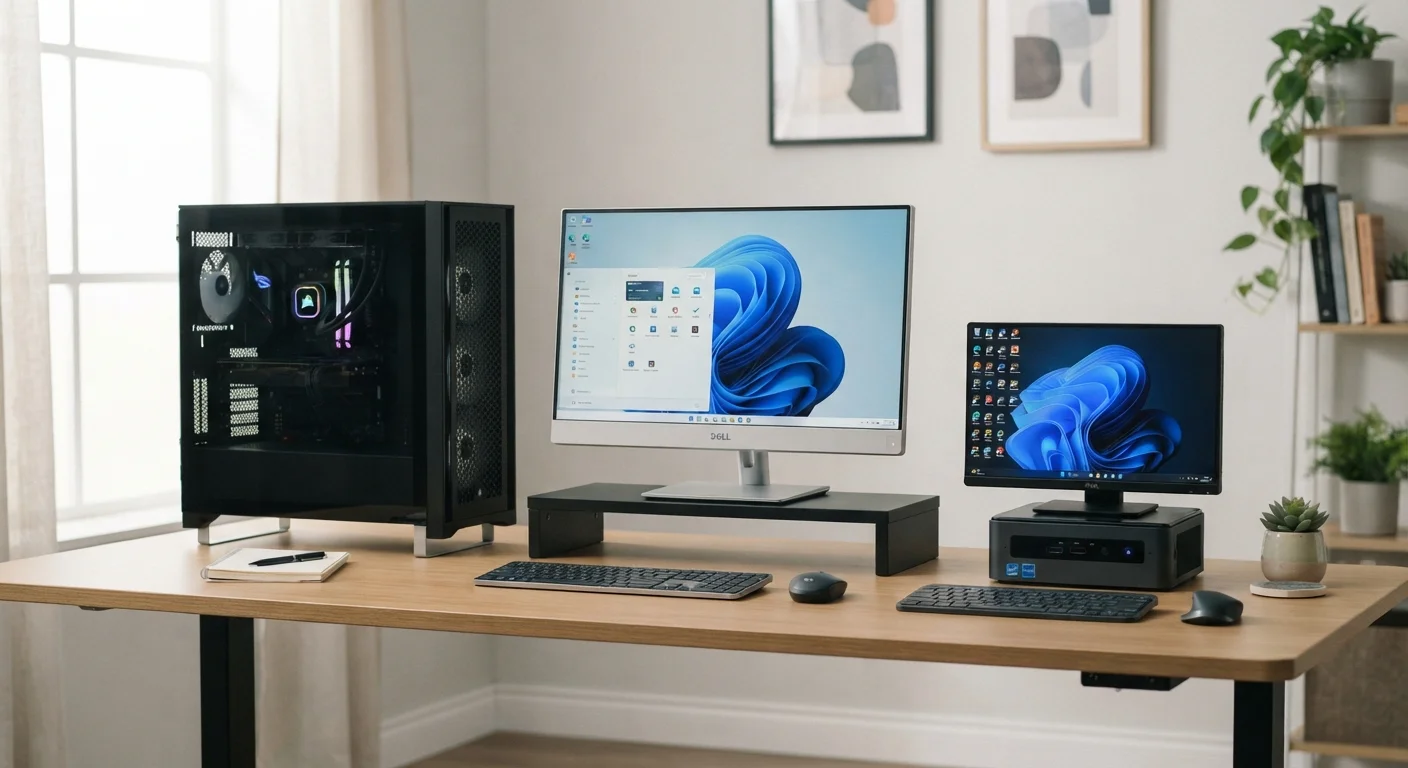
A tower is the traditional box-shaped desktop that sits beside or below a monitor. The defining characteristic isn't size — towers range from compact mid-towers to full-sized cases — it's what's inside: a standard motherboard with multiple expansion slots, easily accessible drive bays, and room for discrete components like a dedicated graphics card (GPU) and additional storage drives.
Towers are the only form factor where you can realistically add or swap components over time. That means upgrading your RAM when a task demands it, replacing a failing hard drive, or adding a graphics card if your needs change. For anyone doing video editing, 3D work, or intensive multitasking, this headroom is genuinely useful — not a marketing talking point.
Plan for How Long You'll Keep It
A tower's upgradability often makes it more cost-effective over a five-to-seven year lifespan than an all-in-one or mini PC that cannot be upgraded. If you tend to keep computers for many years, factoring in future upgrade costs — not just the purchase price — gives a more realistic picture of total value.
The trade-off is space and cabling. A tower requires a separate monitor, keyboard, and mouse, and it takes up more physical room than the other options.
All-in-Ones: Clean Setup, Closed Ecosystem
An all-in-one integrates the computer's components directly into the back of the monitor, eliminating the separate tower entirely. The result is a tidy, cable-minimal setup that looks at home on a living room desk or shared workspace.
The trade-off is meaningful: most all-in-ones use laptop-grade components — thinner, more power-efficient, but typically less powerful than equivalent tower parts. More importantly, the components are not accessible for upgrades in most models. The RAM may be soldered to the motherboard; the storage may be proprietary. What you buy is, for most users, what you'll have for the life of the machine.
| Tower Desktop | All-in-One | Mini PC | |
|---|---|---|---|
| Upgrade potential | High — most components swappable | Low — often sealed or soldered | Very low — limited internal access |
| Desk space required | Large — separate tower and monitor | Minimal — monitor houses everything | Very small — palm-sized unit |
| Performance ceiling | Highest — supports full desktop parts | Moderate — laptop-grade components | Lower — compact, thermally limited |
| Setup complexity | Moderate — requires separate peripherals | Low — minimal cabling | Low — plug into any monitor |
| Energy consumption | Higher — especially with discrete GPU | Moderate | Low — typically 15–35 watts |
| Typical use case | Editing, gaming, heavy multitasking | Everyday home and office tasks | Light browsing, streaming, secondary use |
All-in-ones suit people whose primary tasks are web browsing, email, video calls, and document work — uses that don't push performance limits. For a deeper look at which specifications actually matter for everyday tasks versus which ones are overstated, our article on specs that rarely affect real-world use applies equally well to desktop shopping.
Mini PCs: Small Machine, Specific Use Cases
Mini PCs are palm-sized computers — sometimes smaller than a paperback book — that pack a processor, RAM, and storage into a compact enclosure. They connect to any external monitor via HDMI or DP and typically use far less electricity than a full tower.
Their strengths are portability, low power draw, and near-silent operation, making them practical for media streaming, light office work, basic web tasks, or as a secondary machine. Their limitation is performance ceiling: mini PCs generally cannot accommodate a discrete GPU and have limited cooling capacity, meaning sustained heavy workloads can cause thermal throttling — where the processor slows itself down to avoid overheating.
If you're building out a simple home setup and want to avoid device sprawl, the principles in starting small with home tech are worth considering before committing to any configuration.
15–35W
Typical mini PC power consumption
Mini PCs commonly draw between 15 and 35 watts at load, compared to 150–300+ watts for a tower with a discrete graphics card.
16 GB
RAM baseline for general computing
Industry guidance from hardware analysts increasingly cites 16 GB as the practical starting point for comfortable everyday multitasking.
Processor and Memory: What the Numbers Actually Mean
Across all three form factors, two specifications drive day-to-day experience more than any other: the processor (CPU) and the amount of RAM.
A CPU's core count and clock speed determine how quickly it handles tasks. More cores help with multitasking and parallel workloads like video export; higher clock speeds (measured in GHz) benefit single-threaded tasks like most standard applications. For general home and office use, a mid-range processor with four to eight cores is typically more than sufficient — chasing higher specs adds cost without perceptible benefit in everyday use.
RAM determines how many things your computer can actively juggle. Running a browser with many tabs, a video call, and a document editor simultaneously requires adequate RAM to avoid slowdowns. Sixteen gigabytes is a reasonable baseline for general-purpose computing today; eight may feel constrained within a few years as software requirements grow.
Storage type matters too. A solid-state drive (SSD) loads the operating system and applications significantly faster than a traditional hard disk drive (HDD). If you're evaluating a machine with a hard drive only, that's worth factoring into your expectations. For broader guidance on comparing products before purchase, the product comparison framework is a useful reference point.
Don't Over-Spec for Tasks You Won't Do
It's tempting to buy the most powerful machine available 'just in case,' but processors and RAM that exceed your actual workload provide no real benefit. Spending more on specs you won't use means less budget available for a better monitor, ergonomic peripherals, or reliable storage — components that genuinely affect your daily experience.